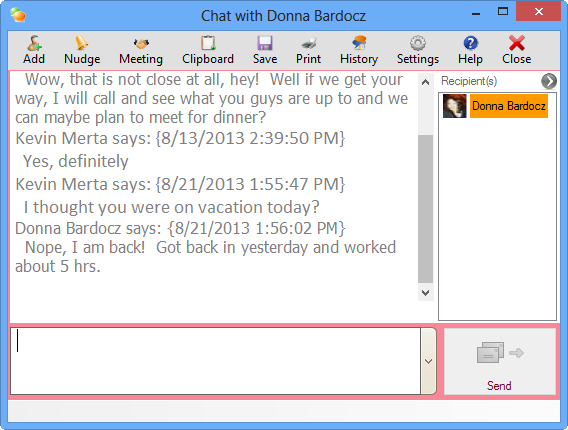
Private Instant Messaging
Instant Messaging is available in the EIOBoard Application, Outlook Add-in, and Browser interface. EIOBoard chat is a private instant messaging system only accessed by the company or organization (unlike regular IM services). Chat with single or multiple people within the organization. Offline messages lets you save a message in the contacts chat queue until the user comes back online.
Benefits
- Private and secure instant messaging to get quick answers and information
- Ability to chat with one or several people at once
- Queue a message when a user is offline, and send automatically when they come back
- Save chat history for future reference, filtered by person and date
Helpful Links
Customizing the Chat Screen